Reading the repo
How to install on Windows
six2dez/
Burp Suite extension that adds built-in MCP tooling, AI-assisted analysis, privacy controls, passive and active scanning and more
Kotlin/JVM#ai#appsec#bugbounty#burp
- Difficulty
- Easy
- Time
- about 5 min
- Stars
- ★ 1,578
- Activity
- Updated this month
Before you start
- Is it free?
- YesOpen source (MIT).
- Still maintained?
- Yes, activeLast change 19 days ago. Latest release v1.1.0, 22 days ago.
- Can I trust it?
- Some track record1.6k stars, 10 months old. Get it from the official repo and read what it installs.
Saved setup from 10 h ago
Will it work on Windows?
Yes, it runs on Windows
- You'll build it yourself with JDK.
Start here
From the maintainersDevelopment setup: CONTRIBUTING.md
CONTRIBUTING.mdContributing to Burp AI Agent
Thanks for your interest in contributing! Here's how to get started.
Development Setup
-
Clone the repo:
git clone https://github.com/six2dez/burp-ai-agent.git cd burp-ai-agent -
Requirements: Java 21 (Temurin or Oracle JDK). Ensure
JAVA_HOMEis set. -
Build:
./gradlew clean fullJarOutput JAR:
build/libs/Custom-AI-Agent-full-<version>.jar(the GitHub full build). For the BApp Store build run./gradlew clean bappJar; its output isbuild/libs/custom-ai-agent-bapp.jar. -
Run tests:
./gradlew test -
Lint and coverage (optional but recommended before opening a PR):
./gradlew ktlintFormat # auto-fix style ./gradlew ktlintCheck # verify style (non-blocking in CI until baseline is clean) ./gradlew jacocoTestReport # HTML at build/reports/jacoco/test/html/index.html -
Load in Burp: Open Burp Suite, go to Extensions > Installed > Add, select the JAR.
Project Structure
src/main/kotlin/com/six2dez/burp/aiagent/
├── ui/              Swing UI components
├── config/          Settings and configuration
├── context/         Request/issue context collection
├── backends/        AI backend adapters (CLI + HTTP)
├── redact/          Privacy redaction pipeline
├── audit/           JSONL audit logging
├── scanner/         Passive and Active AI scanners
├── supervisor/      Backend lifecycle management
├── mcp/             MCP server and tools
├── agents/          Agent profile loader
└── App.kt           Extension entry point
Submitting Changes
- Fork the repository.
- Create a feature branch from
main:git checkout -b feature/my-feature. - Make your changes. Follow the existing code style (Kotlin, no wildcard imports).
- Add tests if applicable.
- Run
./gradlew testand ensure all tests pass. - Commit with a clear message describing what and why.
- Open a Pull Request against
main.
Code Style
- Kotlin with strict JSR-305 null-safety annotations.
- Keep a clear separation between UI, logic, and backend layers.
- Small, testable components. Favor pure functions for data transformations.
- No hardcoded secrets or credentials.
Reporting Bugs
Open an issue with:
- Burp Suite version (Community or Pro).
- OS and Java version.
- Steps to reproduce.
- Extension output/error logs (Extensions > Installed > Output/Errors tabs).
Adding a Backend
See the Adding a Backend developer guide for implementing new AI backend adapters.
Adding MCP Tools
See the Adding MCP Tools developer guide.
Documentation
Docs live in https://burp-ai-agent.six2dez.com/.
License
By contributing, you agree that your contributions will be licensed under the MIT License.
4 steps on Windows
Then run powershell -ExecutionPolicy Bypass -File .\setup.ps1. It stops at the first error and is safe to run again. Servers and tests aren't started; it lists them at the end. Read it first.
Clone the repository
Needs Git: winget install Git.Git
git clone https://github.com/six2dez/burp-ai-agent.git
cd burp-ai-agent
Install the required runtimes
JDK 21
winget install jdx.mise
mise install
Install dependencies
.\gradlew.bat build -x test
Run it
.\gradlew.bat run
From the README: Quick Start
1. Install
Download the latest JAR from Releases: each release carries Custom-AI-Agent-full-<version>.jar (the GitHub full build) and Custom-AI-Agent-bapp-<version>.jar (the BApp Store build), each with a .sha256. Which Build? explains which one to pick. Or build from source (Java 21):
git clone https://github.com/six2dez/burp-ai-agent.git
cd burp-ai-agent

# Full build (GitHub releases) — all 59 MCP tools
JAVA_HOME=/path/to/jdk-21 ./gradlew clean fullJar
# Output: build/libs/Custom-AI-Agent-full-<version>.jar

# Store build (BApp Store submission) — 8 extension-native AI MCP tools only
JAVA_HOME=/path/to/jdk-21 ./gradlew clean bappJar
# Output: build/libs/custom-ai-agent-bapp.jar
2. Load into Burp
- Open Burp Suite (Community or Professional).
- Go to Extensions > Installed > Add.
- Select Java as extension type and choose the
.jarfile.
The extension registers in Burp as Custom AI Agent (the name in the Extensions list and the Suite tab) to distinguish it from Burp's built-in Burp AI provider.
Load only one build. The full build and the BApp Store build both register as Custom AI Agent, so they look identical in Burp's Extensions list. Loading both at once gives you two Custom AI Agent tabs, two MCP servers competing for the same port, and two copies writing the shared ~/.burp-ai-agent directory. Unload one before you load the other.
Burp edition and "Use AI". The BApp Store build runs on Burp Community and Burp Professional; it sends AI requests only while Burp's "Use AI" setting is enabled for the extension, and with it off it loads and refuses every AI request. PortSwigger documents "Use AI" as a per-extension checkbox, off by default: Extensions > Installed > Custom AI Agent > Use AI.
<!-- screenshot: Burp Extensions > Add dialog with the JAR loaded -->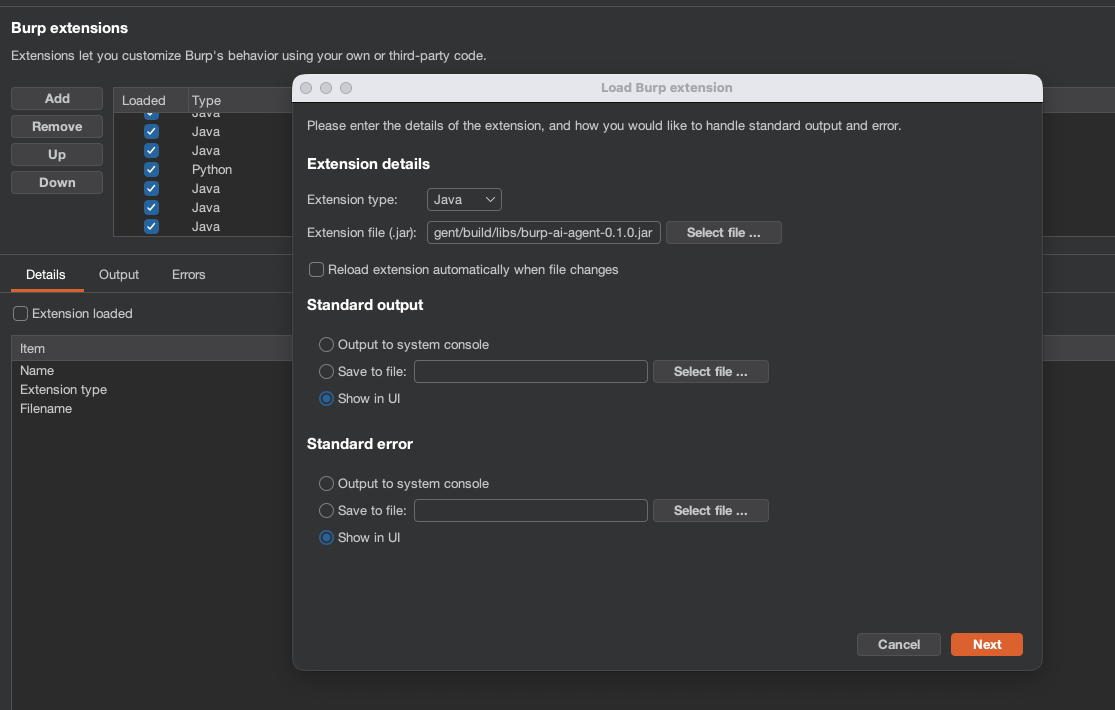
3. Agent Profiles
The extension auto-installs the bundled profiles into ~/.burp-ai-agent/AGENTS/ on first run.
Drop additional *.md files in that directory to add custom profiles.
4. Configure a Backend
Open the AI Agent tab and go to Settings. Pick a backend:
| Backend | Type | Setup |
| :--- | :--- | :--- |
| Burp AI (built-in) | In-process | Uses Burp's built-in AI and needs Burp's "Use AI" setting enabled for the extension (see Requirements); no extra config required. |
| Ollama | Local HTTP | Install Ollama, run ollama serve, pull a model (ollama pull llama3.1). |
| LM Studio | Local HTTP | Install LM Studio, load a model, start the server. |
| NVIDIA NIM | HTTP | Use the default https://integrate.api.nvidia.com endpoint, set your NVIDIA API key, and choose a model such as moonshotai/kimi-k2.5. |
| Perplexity | HTTP | Use the default https://api.perplexity.ai endpoint, set your pplx-... API key, and choose a model such as sonar, sonar-pro, or sonar-reasoning. |
| Generic OpenAI-compatible | HTTP | Provide a base URL and model for any OpenAI-compatible provider. |
| Gemini CLI | Cloud CLI (full build only) | Install gemini, run gemini auth login. |
| Claude CLI | Cloud CLI (full build only) | Install claude, set ANTHROPIC_API_KEY or run claude login. |
| Codex CLI | Cloud CLI (full build only) | Install codex, set OPENAI_API_KEY. |
| OpenCode CLI | Cloud CLI (full build only) | Install opencode, configure provider credentials. |
| Copilot CLI | Cloud CLI (full build only) | Install copilot and sign in with your GitHub account. |
| Anthropic | Cloud API | Enter your Anthropic API key in Settings. API traffic routes through Burp's proxy. See docs/anthropic-backend.md. |
For NVIDIA NIM, the backend expects the same chat-completions style flow as the NVIDIA hosted endpoint. A working configuration is:
Backend: NVIDIA NIM
Base URL: https://integrate.api.nvidia.com
Model: moonshotai/kimi-k2.5
API Key: <your nvapi token>
Leave extra headers empty unless your gateway requires them. The extension sends requests to /v1/chat/completions and uses the configured bearer token automatically.
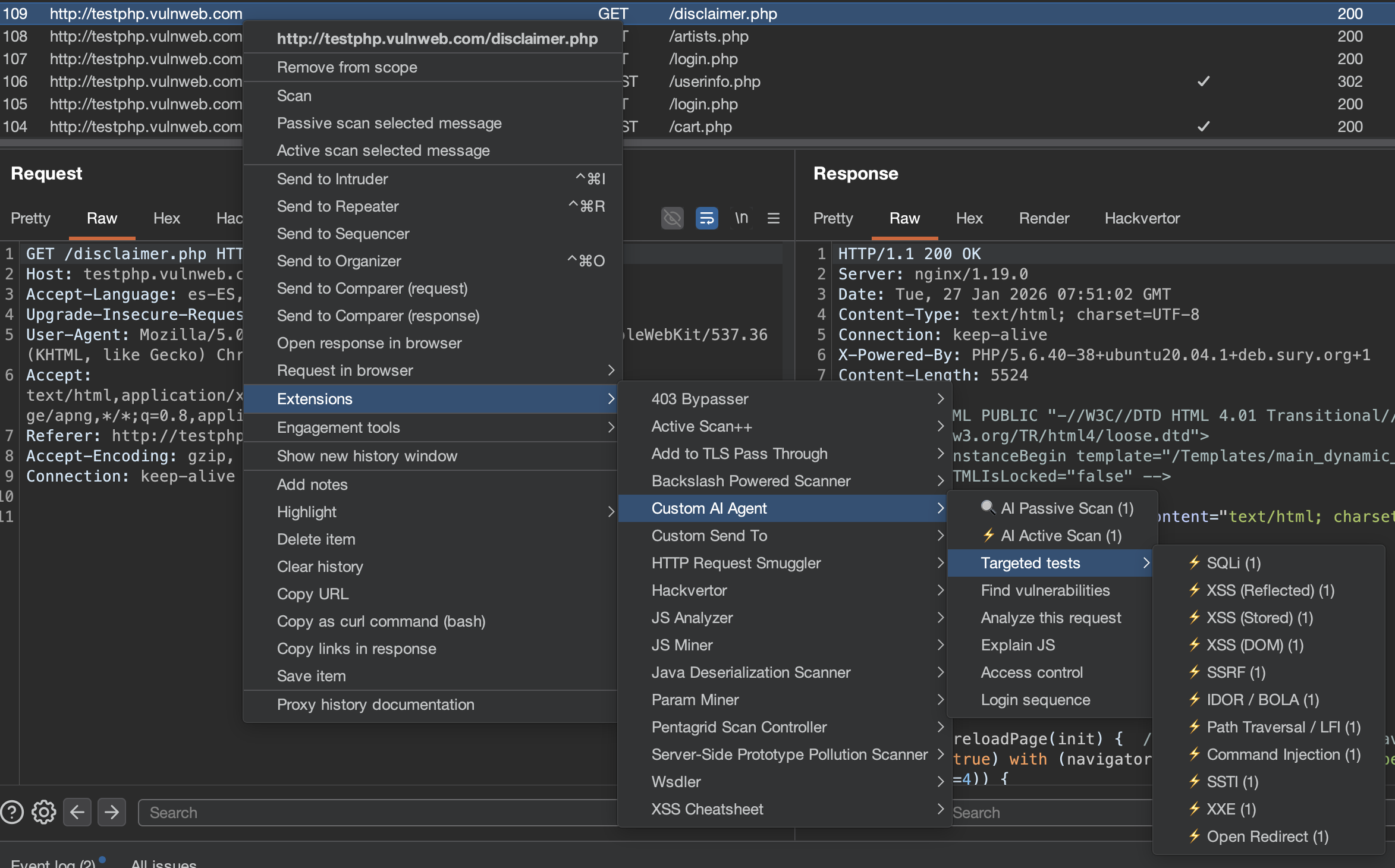
5. Run Your First Analysis
- Browse a target through Burp Proxy.
- Right-click any request in Proxy > HTTP History.
- Select Extensions > Custom AI Agent > Analyze this request.
- A chat session opens with the AI analysis.
6. Connect Claude Desktop via MCP (Optional)
Enable the MCP server in Settings > MCP Server and add this to your Claude Desktop config:
macOS: ~/Library/Application Support/Claude/claude_desktop_config.json
Windows: `%APPDATA%\Cla
…
Did you get it running?
No reports for Windows yet.
Still stuck? Ask an AI
Opens a chat with this manual already filled in, for Windows. It uses your own account; gitmanual sends nothing.